Effective kiosk printer paper path design must consider the complete journey from the paper roll to the customer's hand. Printer specifications matter, but so do enclosure geometry, paper movement, service access, and fault detection.
For engineers and procurement teams developing self-service kiosk hardware, the objective is straightforward: select a compatible printing mechanism, provide sufficient mechanical clearance, and make routine maintenance possible without unnecessary disassembly.

How a Kiosk Printer Paper Path Works
Most receipt-printing kiosks use direct thermal printers. A thermal printhead creates the image as feed rollers move coated paper through the mechanism. Depending on the printer, the paper then passes through an automatic cutter, presenter, or output guide.
A typical configuration follows this sequence:
- Paper roll: Supplies paper from a supported holder or spindle.
- Feed mechanism: Moves paper through the printhead at a controlled rate.
- Automatic cutter: Separates the completed receipt when fitted.
- Presenter or guide: Controls delivery of the printed document.
- Cabinet exit: Provides a clear opening for the customer to collect the receipt.
Not every printer includes all these components. Some applications use a simple direct-exit mechanism, while others require a presenter with document retraction.
The mechanical arrangement also needs to match the software workflow. A printer should not accept another transaction blindly when the previous document remains trapped. This relationship is part of broader kiosk peripheral integration.
Choosing Paper Roll Size and Loading Direction
Paper width is only one consideration. Engineers must also examine roll diameter, paper thickness, core size, mounting direction, and the space required to install a replacement roll.
Paper Width and Roll Diameter
Common thermal receipt formats include nominal 58mm and 80mm paper, but actual compatibility depends on the printer model. A wider roll may accommodate detailed receipts, barcodes, or ticket information, although it can require a larger mechanism.
For example, the Star Micronics TUP500/TMP500 series supports paper widths from 45mm to 82.5mm. Its specified roll diameter is 150mm, with an optional larger holder supporting up to 254mm under the stated configuration.
These are model-specific values, not universal kiosk printer requirements.
The cabinet must accommodate the largest approved roll throughout loading and operation. Check whether the roll can rotate freely, whether mounting hardware interferes with it, and whether a technician can replace it without removing unrelated components.
Paper Loading Direction
Thermal paper must enter the print mechanism with the printable surface facing the correct direction. Incorrect loading can produce blank receipts or feeding problems.
The paper holder should also support proper alignment. Excessive sideways movement, incorrect core adapters, or a roll rubbing against a bracket can introduce uneven feeding resistance.
These dimensions belong in the project drawings and kiosk RFQ and BOM specifications before the enclosure design is finalized.
Direct Exit vs Presenter vs Retractor
The method used to deliver a receipt has a significant effect on printer placement, cabinet depth, and maintenance requirements.
| Output Method | How It Works | Key Design Consideration |
|---|---|---|
| Direct Exit | Paper exits directly through a guide or opening. | Clear exit path and protection against customer pulling. |
| Presenter | Holds the document until printing and cutting are completed, then presents it. | Internal paper storage or loop clearance. |
| Presenter with Retractor | Can pull an uncollected document back inside. | Retract path, reject bin, and additional service access. |
A presenter can prevent customers from pulling paper while a receipt is still being printed. This may be useful for public self-service ticketing kiosks, where customers should receive a completed document rather than an unfinished printout.
However, presenters introduce additional mechanical requirements.
As explained in Hengstler's technical explanation of kiosk printer presenters, many designs temporarily form a paper loop while printing. The enclosure must provide sufficient room for the longest supported document. If the loop touches wiring, mounting brackets, or other internal components, it can become trapped.
A retraction function also requires suitable space for discarded documents. Presenter and Retractor capabilities should therefore be specified separately.

Paper Path Alignment and Jam Prevention
A printer may pass a bench test but jam after installation because the cabinet changes how paper exits.
Keep the Exit Path Clear
The printer outlet, any presenter attachment, and the cabinet opening must align within the tolerances specified by the equipment manufacturer. Avoid creating a sharp transition between the printer exit and a narrow cabinet slot.
Check the paper path with the longest expected receipt, not just a short sample. Longer documents can curl, sag, or contact the surrounding enclosure differently.
Also consider customer behavior. If someone pulls a receipt before delivery is complete, the output arrangement must avoid excessive loading on the feed mechanism.
Allow for Paper Curl and Internal Loops
Thermal paper retains some curvature from the roll. This becomes more noticeable near the end of a roll, where the winding radius is smaller.
Engineers should inspect how the selected paper behaves under actual printing conditions. A guide that works with one paper stock may perform differently with another.
For installations involving high transaction volumes, such as a restaurant self-ordering kiosk, test repeated receipt delivery while checking that paper does not accumulate around the outlet.
There is no single minimum bend radius suitable for every kiosk printer. Use the approved printer drawings, recommended media specifications, and physical prototype testing.
Cutter, Sensor, and Jam-Clearance Access
Preventing every paper jam is unrealistic. A maintainable design allows technicians to reach likely obstruction points safely and restore operation quickly.
Access should be available to the printhead cover, feed rollers, cutter area, paper sensors, and presenter path where applicable.
The printer should not need to be completely removed from the cabinet for ordinary paper replacement or accessible jam clearance.
Design the Cabinet Around Maintenance Tasks
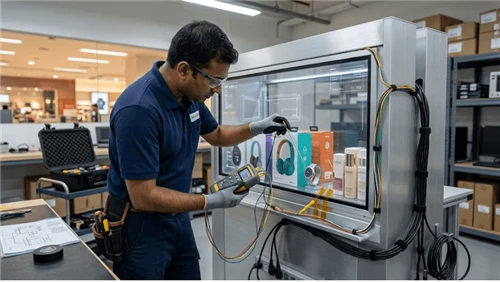
Before approving an enclosure, perform a service trial with a production-equivalent printer and a full paper roll.
Check whether the technician can open the required covers, remove the roll, reach the paper path, and close everything without interference. Review cable movement and the clearance needed for tools or removable modules.
A front-service cabinet may be appropriate against a wall, while a rear-service arrangement may suit installations with dedicated staff access. The broader implications of door swing and module reach are discussed in kiosk maintenance access design.
Where service-door interlocks are fitted, maintenance procedures must also account for the defined electrical and mechanical safety behavior.
Paper-Low Detection and Consumable Compatibility
Paper-Low and Paper-Out are different conditions. A near-end sensor may provide an early warning that a roll needs replacement, while a paper-end sensor indicates that usable paper is no longer detected.
The near-end warning point can depend on sensor placement, roll geometry, and paper holder configuration. It should not be treated as a universal measurement of remaining receipt quantity.
For fleet operations, record printer status, identify affected devices, and establish when staff should replace consumables. These events can become part of remote monitoring and preventive maintenance.
Standardize approved paper width, thickness, core diameter, coating orientation, and other manufacturer-specified media properties. Substituting apparently similar rolls without verification may create feeding, printing, or cutter problems.
How to Clear a Kiosk Printer Paper Jam
The exact procedure depends on the printer model. Technicians should follow the manufacturer's instructions, including power isolation, cutter positioning, and hot-printhead precautions. Never force paper through a jammed mechanism.
- Identify the fault. Check available printer status information and determine whether the problem involves feeding, cutting, or presentation.
- Make the device safe. Follow the model-specific maintenance procedure before opening the mechanism.
- Inspect the paper path. Look for folded paper, small fragments, damaged edges, and obstructions around the cutter or presenter.
- Remove trapped paper carefully. Use the approved access mechanism. Avoid touching blades or forcing moving components.
- Reload compatible paper. Confirm roll orientation, alignment, and a clean paper edge.
- Run a test print. Verify feeding, printing, cutting, and final delivery before returning the kiosk to service.
The NCR Voyix receipt printer maintenance instructions provide a manufacturer-specific example of checking both cutter and presenter areas and removing residual paper fragments.
Repeated jams should trigger further investigation rather than repeated manual clearing. Record the location and circumstances of the fault to distinguish media problems from mechanical alignment or component defects.
Common Kiosk Printer Problems and Checks
| Symptom | Possible Cause | Initial Check |
|---|---|---|
| Paper curls at the exit | Media curl or restricted outlet | Paper stock and exit geometry |
| Paper jams near cutter | Fragments, incorrect feeding, or cutter fault | Cutter area and manufacturer error status |
| Receipt stays inside | Presenter obstruction or delivery fault | Presenter path and sensors |
| Frequent Paper-Low warnings | Sensor position or roll mismatch | Sensor configuration and approved roll |
| Blank receipt | Incorrect thermal coating orientation or printing fault | Loading direction and printhead status |
These checks identify possibilities, not definitive diagnoses. Persistent cutter faults require model-specific service instructions and, where necessary, qualified repair.
Kiosk Printer Acceptance Testing Checklist
Testing should use the intended printer, production-equivalent enclosure, approved paper, and application configuration.
- Verify correct loading with a full roll and an almost-empty roll.
- Print the shortest and longest approved receipts.
- Check output alignment, cutting, and customer collection.
- Test paper-end detection and applicable near-end alerts.
- Inspect accessible jam-clearance procedures.
- Measure paper replacement time using intended service personnel.
- Verify printer recovery after a controlled fault.
- Confirm that replacement consumables match the approved specification.
Record actual results, including observed jam frequency, recovery time, and maintenance difficulties. Define acceptance thresholds based on the approved system design rather than copying unrelated printer specifications.
The results should feed into the project's factory and site acceptance testing process.
What B2B Buyers Should Confirm Before Ordering
Printer compatibility is a system-level decision. A suitable mechanism must fit the cabinet, work with the software, and remain serviceable after installation.
Include the following information in the technical inquiry: printer model, paper dimensions, maximum receipt length, output method, available cabinet space, access direction, expected daily printing volume, software interface, and required fault reporting.
Also confirm the availability of replacement components and the responsibility for field servicing. These decisions are closely related to kiosk spare parts and service-level planning.
For custom self-service terminal projects, the enclosure and printing mechanism should be reviewed together before final manufacturing drawings are approved.
Frequently Asked Questions
What causes paper jams in kiosk printers?
Potential causes include incorrect paper loading, incompatible media, paper fragments, restricted output paths, presenter obstruction, and cutter faults. The actual cause must be confirmed through inspection and printer diagnostics.
Does every kiosk printer need a presenter?
No. Direct-exit printing may be suitable for some applications. Presenters are useful when controlled document delivery is required, but they also introduce additional space and maintenance considerations.
Can a printer use larger paper rolls?
Only within the supported configuration. Larger rolls may require different holders or mounting arrangements. Check manufacturer limits and enclosure clearance before selecting them.
Should paper jams trigger an automatic kiosk restart?
Not normally as the first response. Mechanical obstructions usually require printer-specific fault handling and possibly physical intervention. Restarting the application does not remove trapped paper.
How can kiosk printer maintenance time be reduced?
Provide accessible paper loading, a clear service opening, documented jam-removal procedures, standardized consumables, and appropriate fault reporting. Validate the improvements through timed maintenance trials.
Discuss Your Kiosk Printer Integration Requirements
A dependable kiosk printer installation begins with the mechanical layout, not just the printer datasheet. Paper movement, cabinet openings, consumables, sensors, and service access must work together under actual operating conditions.
LEGOYO provides customizable kiosk display hardware and supports discussions about enclosure configuration and peripheral integration requirements. Share your printer specifications, mounting drawings, expected receipt format, and service access needs to review the appropriate project configuration.